Switch pings on for this device
Open My Lounge, go to This device and turn on New episode pings. Your browser then asks whether Aniwave may show notifications. Choose Allow. Every phone, tablet or computer you use needs this one time.

Meet My Lounge. Your saved shows, the minute you stopped at and new-episode news, kept on one private code. No account, no email.
Follow a show once and your phone or computer lets you know the moment its next episode is ready to watch on Aniwave. No account, no app to install.
Looking at what this browser lets Aniwave do...
Once pings are on, ring the bell on any show you follow. Every new episode sends a single ping.
Open My Lounge, go to This device and turn on New episode pings. Your browser then asks whether Aniwave may show notifications. Choose Allow. Every phone, tablet or computer you use needs this one time.

On a show page press Ping me next to the play button. On Releases every show has its own bell, and the last episode of an airing show offers the same switch right under the player.
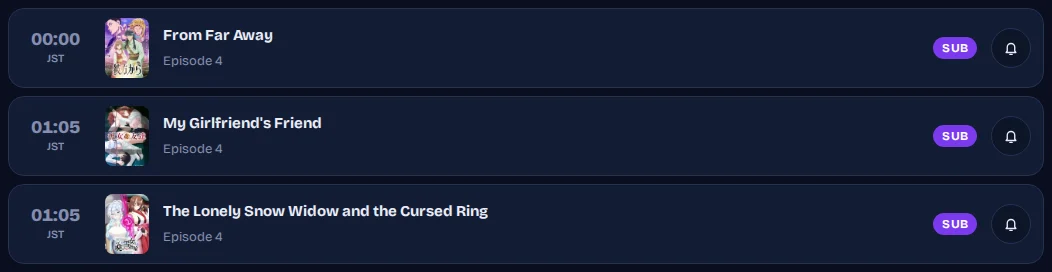
A short note with the show name and the episode number. Tap it and the episode opens on Aniwave, already set to SUB or DUB the way you last watched.
Tap the bell again to stop a single show. To stop everything on this device, open My Lounge, This device, and switch New episode pings off.
Apple only shows site notifications for pages kept on the Home Screen. In Safari tap Share, then Add to Home Screen, open Aniwave from that icon and switch pings on there.
Check that notifications for Aniwave are allowed in the browser settings, and that you are not in a private window. Pings work in Chrome, Edge and Firefox on Android, Windows and Mac.